Compress Image to 10KB
Target an ultra-small 10 KB (10,240 bytes) maximum file size locally in your browser—built for scanned signatures, micro thumbnails, favicons, and strict legacy upload forms.
How to Reach a 10KB Image Limit Without Unreadable Artifacts
A 10 KB ceiling (10,240 bytes in binary KiB, or 10,000 bytes on strict decimal validators) is one of the tightest image budgets on the web. It appears most often on legacy government exam portals (scanned ink signatures and thumb impressions), email signature logos, forum micro-avatars, and embedded IoT or receipt graphics.
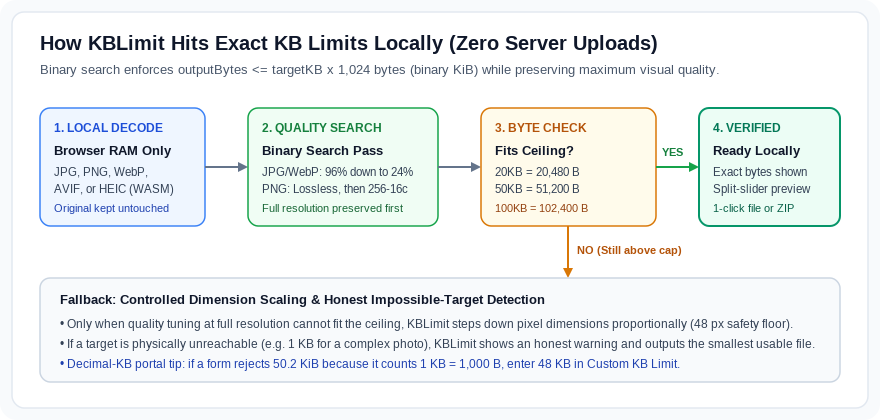
At 10 KB, pixel dimensions and visual complexity dominate file size far more than encoder tweaks alone. A 4000×3000 px camera photograph contains 12 million pixels and cannot fit inside 10,240 bytes at full resolution without collapsing into unreadable blocks. KBLimit runs a local binary quality search first and only steps dimensions down cleanly when needed, reporting exact output bytes, dimensions, format, and whether the 10 KB ceiling was achieved.
- Crop whitespace before compressing: use KBLimit’s Crop Image tool to trim margins around a handwritten signature, then click "Compress" via RAM handoff so every byte goes toward the ink strokes.
- Choose the right format: for opaque signatures and tiny portraits, JPG or WebP usually reaches 10 KB cleanly; for crisp flat-color logos with transparency, keep PNG (KBLimit preserves alpha via palette quantization) or switch to WebP if accepted.
- Decimal KB vs. binary KiB: KBLimit enforces 10 × 1,024 = 10,240 bytes. If a strict portal checks decimal 10,000 bytes, enter 9 KB (9,216 B) in the custom KB field and verify the exact byte readout on the file card.
- Honest limitation handling: if a high-detail or transparent image cannot fit under 10 KB without unacceptable degradation, KBLimit flags "Limit 10.00 KB exceeded", provides the smallest usable file, and explains how to reach the cap.
Format Choice, Transparency & Local Privacy for Signatures
Handwritten signatures, thumbprints, and ID thumbnails are sensitive personal artifacts that should never be uploaded to third-party compression servers. KBLimit decodes, searches quality, and writes your compressed output strictly inside temporary browser RAM—with zero server uploads, zero accounts, and zero stored copies.
When Output Format is set to Auto, KBLimit preserves PNG transparency instead of silently converting every image to JPEG. If you explicitly switch Output Format to JPG on a transparent PNG to hit 10 KB, KBLimit warns you that transparent pixels are flattened onto a white background.
Frequently Asked Questions
Can every photograph be compressed to 10KB?
Not at high resolution. 10 KB (10,240 bytes) is a tight ceiling that works cleanly for signatures, icons, and small portraits, while large detailed photographs require controlled downscaling. If 10 KB cannot be achieved cleanly, KBLimit reports the limitation honestly and gives you the smallest valid output.
Should I use JPG, PNG, or WebP for a 10KB target?
Use JPG for opaque signatures and portal forms that only accept JPEG. Use WebP when accepted for smaller files at better clarity. Keep PNG (Auto) only when you must preserve transparent backgrounds on simple logos or line art.
Why does KBLimit show 10,240 B instead of 10,000 B for 10KB?
Operating systems like Windows measure 1 KB as 1,024 bytes (binary KiB). If a strict upload portal rejects files over 10,000 decimal bytes, type 9 into the KB field (9,216 B) and check the exact byte count on the result card.
Will KBLimit destroy my transparent PNG background automatically?
No. In Auto format mode, KBLimit keeps transparent PNGs as PNG and uses alpha-preserving palette optimization. Transparency is only flattened if you explicitly select JPG, and KBLimit displays a clear notice when that occurs.
Is my scanned signature uploaded anywhere during compression?
Never. All compression runs 100% locally in your browser’s temporary RAM with zero network uploads.