Compress Image to 30KB
Hit strict 30 KB (30,720 bytes) upload limits for competitive exam forms, passport headshots, and digital signatures—processed 100% locally in your browser.
Why 30KB Is a Common Exam, Visa & Signature Upload Limit
Online registration systems—including SSC, UPSC, banking exams, university admissions, and municipal ID portals—frequently specify a 10 KB–30 KB window for scanned signatures or a 20 KB–30 KB ceiling for compact passport-style headshots. Dropping a 2 MB smartphone photo into these forms triggers an immediate size-limit rejection.
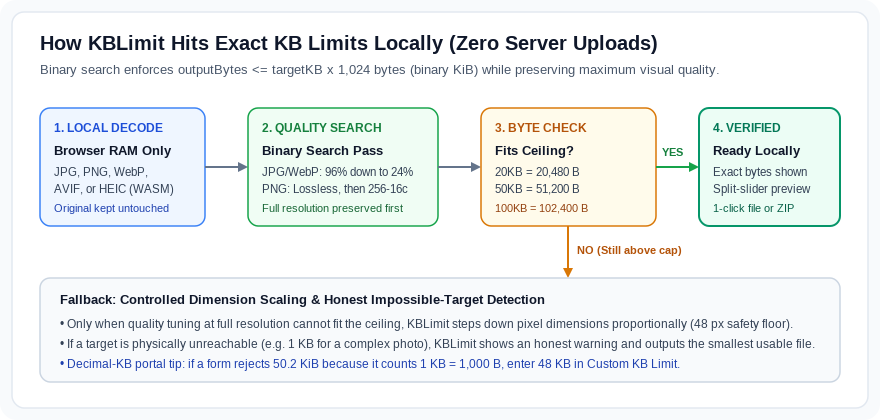
At 30 KB (30,720 bytes in binary KiB), KBLimit has significantly more room than a 10 KB cap to retain legible handwriting and recognizable facial detail. The local engine binary-searches quality first to preserve your original dimensions whenever possible, then applies proportional downscaling only if the source image is too large in pixel count to fit at usable quality.
- Practical tip for headshots: crop tightly to the required aspect ratio (e.g., 3.5×4.5 cm or 1:1) on KBLimit’s Crop Image page first, then use RAM handoff to compress under 30 KB with much sharper facial detail.
- Format guidance: JPG is required by most government and exam uploaders and reaches 30 KB reliably on portraits; WebP offers even cleaner edges when supported; Auto preserves PNG transparency for badges and stamps.
- Binary KiB vs. decimal KB: 30 KB equals 30,720 bytes in binary units. If your portal strictly enforces 30,000 decimal bytes, enter 29 KB (29,696 B) in the custom KB box and verify the exact byte count shown on the card.
- Save your recurring setup: click "Save Current" in the Saved Presets bar to store a named 30 KB configuration locally (settings only, never your photos) for future applications.
Quality vs. Dimensions Trade-Off & Zero-Upload Privacy
File size is driven by pixel count, texture noise, color variety, and encoder efficiency. Plain light backgrounds behind a headshot or signature compress dramatically better than busy patterned backgrounds. If a noisy 12-megapixel photo requires heavy compression at 30 KB, resizing to 400–600 px on the longest side first yields noticeably cleaner results than crushing a massive image to low JPEG quality.
All decoding, iterative compression, and preview rendering stay strictly inside your browser tab’s local RAM. Your ID photos and signatures never leave your device.
Frequently Asked Questions
Does Compress Image to 30KB guarantee every file will be exactly 30.0 KB?
30 KB (30,720 B) is treated as a maximum file-size ceiling, not an artificial padded size. KBLimit chooses the highest visual quality that fits at or under 30,720 bytes, and reports the actual byte size and whether the target was met.
What if my portal requires a photo between 20KB and 30KB?
Start with the 30 KB ceiling above—KBLimit’s binary search aims close to the upper limit to maximize quality, typically landing in the 24–29.9 KB range when the source image is larger than 30 KB. Check the exact output size on the card before downloading.
How do I compress an iPhone HEIC photo to 30KB JPG?
Drop your .heic file directly above and select JPG as the Output Format (or leave Auto, which converts opaque HEIC photos to JPG automatically). KBLimit decodes HEIC via local WebAssembly and fits the output under 30 KB in one pass.
Will my transparent PNG logo lose transparency at 30KB?
No, as long as Output Format stays on Auto, PNG, or WebP. KBLimit preserves alpha transparency and only flattens transparency if you explicitly select JPG.
Are my exam photos or signatures saved in localStorage or sent to a server?
No. Images remain strictly in temporary browser memory and are cleared when you close or reload the tab. Optional Saved Presets store only your numeric/format settings, never image data.