HEIC to PDF Converter
Convert iPhone HEIC and HEIF photos into clean single-page or multi-page PDF documents locally in your browser—reorder pages, choose A4, Letter, or Fit sizing, and keep private scans off remote servers.
Direct iPhone HEIC to PDF Without Cloud Uploaders
Modern iPhones and iPads save camera photos—including photographed receipts, expense slips, signed rental agreements, homework assignments, and passport copies—as .heic or .heif files. Most corporate expense portals, school LMS uploaders, tax preparers, and government forms reject HEIC outright and ask for a single PDF instead.
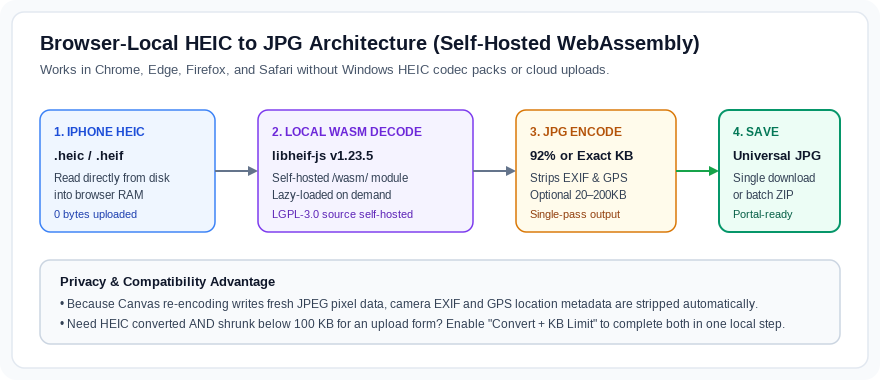
KBLimit pairs its self-hosted libheif WebAssembly decoder with lazy-loaded pdf-lib directly inside your browser tab. Each HEIC photo is decoded in local RAM with proper portrait or landscape orientation preserved, then embedded into a standards-compliant PDF document without sending a single byte to an external server.
- Single-image and multi-image HEIC/HEIF batches: convert one photo to a PDF or combine an entire stack of photographed pages into one multi-page PDF.
- Drag-free explicit page ordering: use the Move Up and Move Down controls on each card to arrange pages in exact sequence before clicking "Combine into 1 PDF".
- Smart page sizing & margins: A4 (210×297 mm) and US Letter (8.5×11 in) auto-rotate to match portrait or landscape HEIC photos, while Fit to Image sizes each PDF page to the photo’s exact proportions.
- Honest format and error handling: non-HEIC files or damaged HEIC containers are flagged clearly on their card instead of silently substituting unsupported formats or producing corrupted PDFs.
File Counts, Output Sizes & Workflow Tips
The toolbar displays your total file count, ready count, combined source HEIC byte weight, and generated PDF sizes—both per page and for the combined multi-page PDF—so you can verify upload-size compliance before submitting to an HR, tax, or school portal.
Need standard JPG or PNG copies of your iPhone photos instead of a PDF? Use KBLimit’s HEIC to JPG or HEIC to PNG tools. Need to mix HEIC files together with JPG or PNG screenshots in the same document? Use KBLimit’s multi-format Image to PDF converter.
Frequently Asked Questions
Can I combine multiple iPhone HEIC photos into one multi-page PDF?
Yes. Select or drop multiple .heic or .heif files, reorder them using the Move Up and Move Down buttons on each card, and click "Combine into 1 PDF" to download one ordered multi-page PDF.
Does HEIC to PDF preserve portrait and landscape orientation?
Yes. KBLimit reads the decoded HEIC orientation and automatically sets A4 or US Letter pages to portrait or landscape to match each photo, or matches exact image proportions in Fit to Image mode.
What happens if I drop a non-HEIC file or a corrupted HEIC image?
HEIC to PDF checks file signatures locally and clearly flags any non-HEIC or unreadable file with an actionable error message rather than producing a broken PDF. For mixed JPG/PNG/HEIC packets, use Image to PDF.
Are my iPhone photos or receipts uploaded to a server?
No. Both libheif WebAssembly decoding and pdf-lib document assembly run 100% locally in temporary browser RAM with zero server uploads.
Can I change page size or margins after adding my HEIC files?
Yes. Switch between A4, US Letter, or Fit to Image (and None, Small, or Normal margins) at any time, then click "Apply Layout" to rebuild your PDFs locally without re-selecting files.